|
Managing Your
Address Book
Each website has an
online address book that is only viewable to the website manager.
The book is one of the tools you can use to keep access critical
information online. Keeping contact information on your website
provides you full access to that information any place you have
Internet access. The database will hold up to 2500 records with
standard fields and an additional 20 custom fields you define to
fit your business model.
To add custom
fields:
Under the Address Book Management there should be a link to [ Add Custom
Fields ]. This will allow
you to add up to 20 custom fields making your database unique and
extremely useful. The page will have 20 form fields. Simply add
the names of the the fields you want to add and click the submit
button.
For example, you want
to include the customers birthday so you can send them a birthday
card. You can name the field anything you wish, but you will want
to know what it is, so don't use abbreviations or codes. We would
suggest simply "Birthday".

When you add any new
records, the new Field will appear on the page. It is important
to get the fields configured before you add records so you do not
have to go back and edit old records. Adding new fields will not
damage old records, but the fields will be blank, until you add
the information.
Searching the
Address Book:
Under the Address Book Management there should be a link to [ Search
Addresses ]. The link will
take you to a search form. The form will allow you to search all
your records for a keyword or limit to one field.
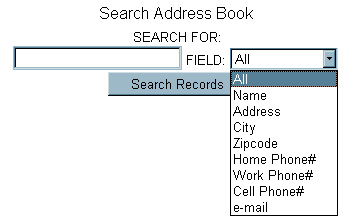
If you know the
persons first name, you can narrow your search to first names and
return only records with a match. But if you search all fields,
you could get any match that includes the name string. For
example, search ALL fields for "BOB" might return
"JOE at 123 BOB Street".
Modify
Records:
To modify a record, you must first find the record sing the
search. The search will display all the information in that
record followed by 2 links [Modify] [Delete]. To modify the
record, click the Modify link and the information will be
displayed editable text boxes. Simply make the changes or add new
information and submit the changes. The record is updated.
Add Records:
Under the Address Book Management there should be a link to [ Add Entry ]. Clicking that link will bring up a
blank form. Just fill in the information you want to save and
submit the form. A new blank form will appear and you can
continue to add new records.
Importing Data - The
import feature allows you to upload files from other programs or
devices and store data on your website. If you have a business
computer with contact names it is nice, but if you are on the
road you cannot access your data on your business computer. This
allows you to operate in the cloud and keep all of your address
information and vital contact details always within reach
regardless of where you are.To import a file it must be in the
correct format, either in columns in the correct order or with a
header row defining each field value.
The fields are:
action - This is the
action you wish to take on the record can be add,
modify, ignore or remove.
recordnumber - The record number or reference id
for the record. Will auto generate if left blank.
Standard fields that need no explanation.
name
address
city
state
zipcode
homephone
workphone
cellphone
email
custom01 to custom20
- There are 20 custom fields you make up. They are still
referenced by the custom01 name for import and export but are
displayed on the website as the names you define in the set up.
blank - This field is left
blank and reserved for the program if needed.
notes - Each record can have a series of notes
along with the data.
Rather than listing all the fields and
sample data here, we suggest you add at least 1 record, export
the data and use that as the framework for your import file. If
you already have a file from another program, just use the field
names above to set up a header row in the file so you can import
the data.
Uploads are limited to 2MB and 2500 records.
File format must be ".txt" or the
upload will fail. You cannot just upload any database, it must be
formated correctly and have the correct fields.
Exporting Data - The
export feature allows you to export all of the files in your
address book to be used by outside programs. The output file is a
plain text file in CSV or pipe or tab delimited format. The file
can be exported with our without the header row and in an email
only format for bulk mailing lists. You will need to check each
outside program for the best format and how they want the data
formatted for import.
|