|
Designate
Alternate Links for Buttons
This section allows you to redirect your
main menu buttons to another page or website rather than the page
the system designates. When you Add A New Page (under the Edit
Pages section), the system directs that page link to that
specific page. For example, when you add a new page called Blog,
when someone clicks on the Blog link in your main menu, they go
to your blog page (which you edit by clicking on the Edit Pages
icon, finding the page in the list, and then clicking on Edit for
that page). But you may want that person to be directed to your
blog on WordPress or Blogger (or whatever program you're using
for your blog). You can also use this feature to link your main
menu buttons to your shopping cart categories. This section
allows you to direct your menu menu buttons to whatever page you
want.
First, you need to need to highlight and
copy the url for the page where you want people to end up when
they click on your main menu button. Then, go back to your
Management Console, click on the Page Properties icon at the top,
click on the Designate Alternate Links for Buttons section, find
the bracelets page in the list, click in the box next to the page
name and pages in the url. Submit your changes.
- Example: Link
to Shopping Cart Category: You added a new page
called Bracelets and you want people to see the bracelets
you added to your shopping cart when they click on that
Bracelets page.
First,
you need to make sure that you have a category called
bracelets in your shopping cart. If you have not done
this yet, click on the Shopping Cart icon at the top,
click on the Add Category link, add the name of your
category and submit.
Second, go to your website
by clicking on the Website Home icon at the top and click
on whatever page that currently shows your entire
shopping cart.
Third, click on the
Bracelets category in the category listing.
Fourth, go up to the
address bar, highlight and copy the entire url.
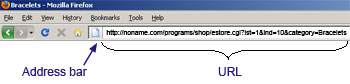
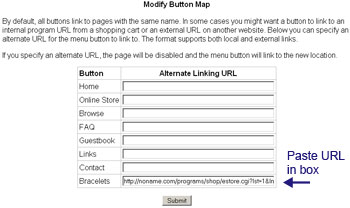
Fifth, go back to your
Management Console, click on the Page Properties icon at the
top, click on the Designate Alternate Links for Buttons
section, find the bracelets page in the list, click in the
box next to the page name and pages in the url. Submit your
changes.
Now, go to your website (by
clicking on the Website Home icon at the top), and click on
the Main Menu button that you linked (in the above example,
you would click on Bracelets). Do you end up in the correct
place? If not, repeat the above steps making sure that you
initially copied the correct url.
The process above will be the
similar for any page you want to link - whether it is on your
website or some other website. All you need is the url for the
page where you want people to end up when they click on the
button from the Main Menu.
|