|
Creating
Button Effects
Button mouse-over effects are motions of
the buttons on your main menu when the user places their mouse
over the buttons. There are a range of motions and effects that
can be used to give your website template some life. Buttons can
be moved side to side, in and out of the page and even be lit up
with colorful borders or backgrounds.
These effects are created with the use of
Style Sheets and will not work on older browsers or
if style sheets are disabled on the users browser.
We like to avoid any flashy useless tools if they impact the
design or the display of the page. In this case, it will not
impact the operation of the page and be pretty cool on browsers
that support this feature.
You will find a link to Add Special Effects
to Buttons under the "Page Properties" icon in the
Management Console under the "Menu Buttons" section of
the page.
You can choose one of the special effects
on the page. Each effect can be configured based on the
parameters that it uses.
The Slide option, for example, allows you
to set the distance the button will slide and the direction of
the slide. The Border option, for example, allows you to set the
border width and the color of the border as well as the style of
the border. When you make your changes, scroll down to the bottom
of the page and then click on the Update button to save your
changes. The settings will be saved, so as you try out other
effects so you can easily switch back to any effect with the
parameters you set previously. That makes it easy to try out
different setting and effects to get the best effect for your
website.
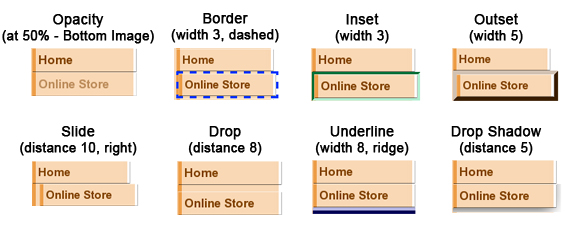
Rollover Motion
Effects for Menu Buttons
Opacity - Changes
the button image to become transparent.
Border - A border appears around the buttons
images.
Inset - The buttons depress into the page.
Outset
- The buttons pop out of the page.
Slide - The buttons slide to one side.
Drop - The buttons drop down.
Underline - A underline appears below the buttons.
Drop
Shadow - A Gray drop shadow on a white
background is added below the button. This effect only
looks good on white background pages.
If you do not want to
have any button effects, select the DISABLE Button Rollover
Effects option (first option on the page) and Update your
settings.
|