|
Linking
Thumbnails to Full Size Pics
Many people want to place smaller pics in
the pages so when you click on them, you are taken to a larger
pic. In the case of the shopping cart, that is done for you
automatically. However, if you want to do that in regular pages,
you are going to need to do it manually.
When you upload the images to
the image manager a small thumbnail is created and the image is
resized to a maximum of 500 pixels wide. This allows the full
size image to fit in any page. So you already have both the small
pic and large pic on the website.
The easiest way to link the images is to
add the large image to a page just for that image. For example,
make a page called "sample1". Then edit that page and
add the full size image to that page. You should also exclude the
page from the main menu so the page does not appear in the main
buttons.
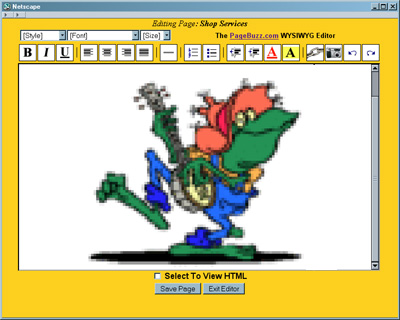
Next you will edit your main page, or the
page you want the smaller image on. You can add the thumbnail
image using the page editor and draging the image to your page.
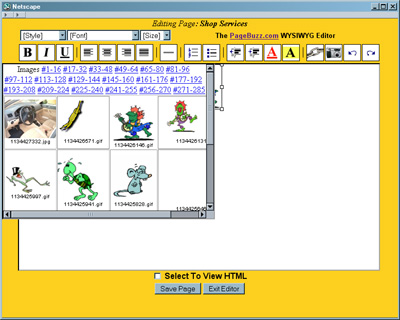
After the image is added to the page, you
need to link the image to the "sample1" page.
Click on the image or highlight the image.
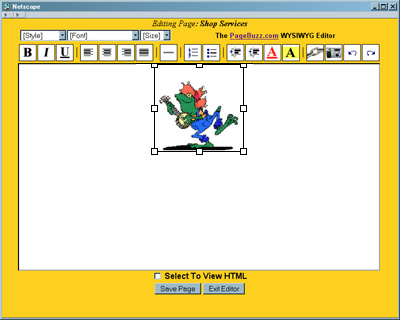
Then click on the LINK button. A popup will
appear.

Type in the name of the page you want to
link to. In this case the page name is "sample1.html".
Notice we have added ".html" to the page name. That is
necessary, because that is the actual full name of the page. You
can link to the full page url, shown on the edit page list of
pages.
Once you save the page, you have
sucessfully linked the 2 images.
You can link to the actual url of the image
rather than adding it to a page. The page method is easier,
because the url of the page is posted for linking. Each page url
is listed in the main "Edit Page" page shown below.

If you want to link to the jpg
or gif image directly, the image names are listed in the image
gallery. The actual url of the image is: https://yourdomain.com/images/picname
(of course you would replace
the yourdomain.com with your actual domain and the picname with
the actual picname)
It may seem complicate, but
once you get the knack of it, you will be linking to everything.
Also See Adding Hyperlinks to Pages
|